Windows 7 is Engineered for speed. Special attention has been given by the Windows team for making Windows 7 faster than the previous operating systems. Windows 7 is much faster than Windows Vista, but even then most of us don’t get satisfied with it. There are many who still have their old PC. Installing Windows 7 on them wont be as soothing as they would work with XP and even with latest hardware installed, some users would still be avaricious for more performance. So, if you’d like to squeeze out the best from your OS, read on the Ultimate Guide To Speed Up Windows 7.
The Minimum Requirements You need To Run Windows 7
1) 1GHz processor (32- or 64-bit)
2) 1GB of main memory
3) 16GB of available disk space
4) Support for DX9 graphics with 128MB of memory (for the Aero interface)
5) A DVD – R/W drive
If you’re on windows 8, check out our exclusive guide to The Best Tweaks & Software’s To Speed Up Windows 8
So, lets start The Ultimate Guide to Speed up Windows 7
Disabling the Search Indexing Feature in Windows 7
- Right Click the “Computer” Icon from the desktop and select “Manage”.
- Click “Services and Applications” in the “Computer Management” window.
- Click on “Services”.
- You’d see a lot of services being listed inside the window. Find “Windows Search” from the list.
- Right Click on “Windows Search” and choose “Properties”.
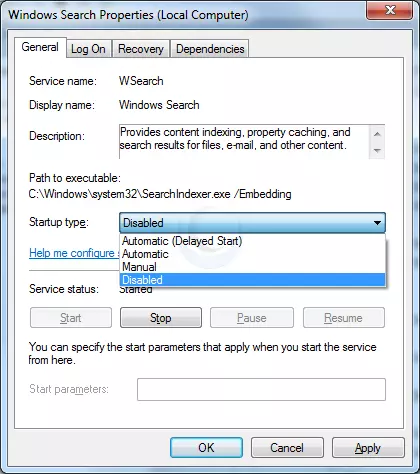
- The “Windows Search Properties Window” will open up. From “Startup type” click on the drop down menu and choose “Disabled”.

- Click “Apply” then “OK” and that’s it. The Windows 7 Search Indexing Feature is now disabled.
Most Windows 7 users are not likely to do frequent file search in their system. The Search Indexing service in Windows 7 will index and keep track of the files, so that they could be found out quickly when needed. This feature is useful only if you perform frequent searches on your system.
For those who doesn’t rely much on the windows search, the Search Indexing service in Windows 7 can be disabled as it would hog up resources. If you’d like to completely disable the search indexing feature in Windows 7 you may set the Search Indexing Service to Disabled (See the above method about disabling unwanted services).
Disable the Aero Theme on Windows 7
- Right Click on your Desktop and select ” Personalize ” click the Window Color Tab.
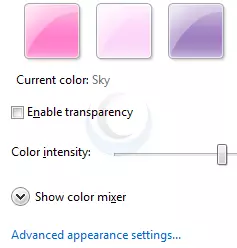
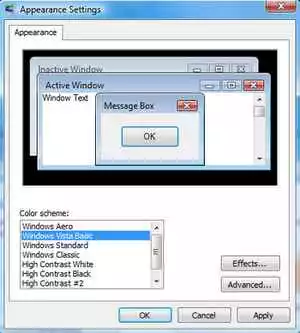
- Uncheck the Box saying ” Enable Transparency ” and then click on ” Open classic appearance properties for more color options”.

- You may also Apply a Standard or Basic theme from the previous window. The Standard Windows 7 theme is more preferred as its gives a neutral look than the classy windows old theme.
The aero user interface certainly adds some ” Eyecandy ” to Windows 7 but it requires a good hardware and system resources to run smoothly. Older graphics cards would be squeezed to their maximum when aero is forcefully enabled. So if you are on the same line, Disabling the Aero in Windows 7 certainly adds an extra speed boost to it.

Disabling the aero theme in Windows 7 will speed things up as the hardware could now be allocated more resources and you could try checking the memory consumption when aero is turned on and off.
Disabling the Unwanted Visual Effects in Windows 7
- Right click on ” Computer” and select “Properties” from the right click menu.
- Click on ” Advanced System Settings ” from the left pane to open up the ” System Properties ” window.
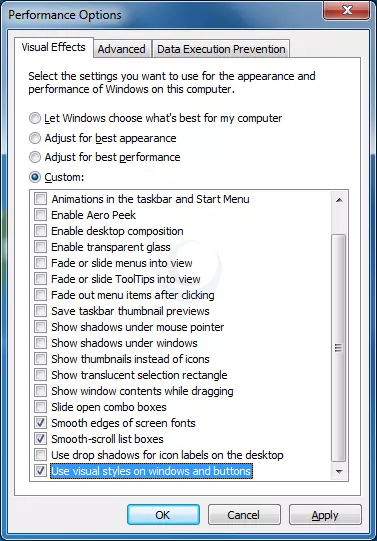
- Select the “Advanced” tab from it. Then Under ” Performance ” click ” Settings “. Choose ” Custom: ” Options From it.
- Now un-tick all the options (Choose “Adjust for best performance“) and select only the last four options (actually three are preferable you may un- tick the second option out of the last four). Take a look at the screen shot below.

- Now just logoff your system and login again.
Even though we have tuned off the aero effects in Windows 7 still there are many unwanted visual effects that could be safely disabled to speed up windows 7 performance.
Disabling the Unwanted Services to Speed up Windows 7
There are many services in windows 7 that we don’t depend on for our daily use. There are some exceptional cases though. Services such as “print spooler” are used only when there is a need to print a document. If you does’t own a printer, you could safely turn off that service in Windows 7 and turn it on only when there is need to take a print.
I have previously prepared a,
List of services in Windows 7 that can be safely set to manual / disabled
Disabling the unneeded services in Windows 7 can really speed up the system boot time too.
Disable the User account control (UAC) Feature in Windows 7
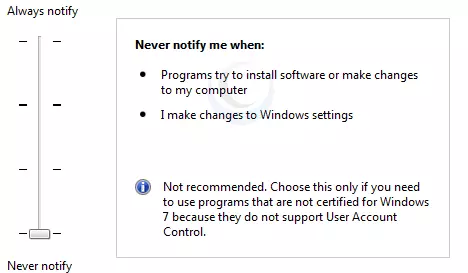
Disabling UAC is recommended for advanced users only its not recommend doing it if not.- From the Control Panel open the ” User Accounts and Family Safety ” > User Account.
- Click the User Account Control settings link.
- Now just Drag the Slider towards “Never Notify”.

- Click “OK” and Reboot your system.
The User account control (UAC) feature in Windows 7 is very annoying for experienced windows users and for others it could protect your pc from harmful virus activity etc. If you do software installations more frequently on your system, turning off the uac feature would definitely save you extra time.
SetUp the Windows 7 Ready Boost Service for an Extra Speed Boost
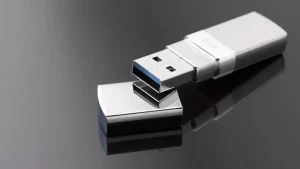
- To configure the Ready Boost Feature in Windows 7 you need to have a high speed USB Flash Drive with you which is ready boost compatible.
- After plugging your pendrive, open “Computer” > Right-click the on USB Drive/Pendrive > select “Ready Boost” tab > tick the “Use this device” checkbox.
- You may configure the amount of space on your Pendrive to be used as Ram.
The ready boost feature in Windows 7 will help you to use your usb flash drive as Ram there by improving the performance and speed of windows 7 greatly. You’d certainly experience it when launching bulky applications such as Adobe Photoshop etc.
Note : Ready Boost would be beneficial for systems which have low amount of ram installed (less than 1GB).
Turn off Unused Windows 7 Features
- Open up ” Programs and Features ” from Control Panel.
- Click the ” Turn Windows features on or off ” from the left pane.
- Now un-check all the Feature that you don’t use in Windows 7 and restart the system for the changes to take effect.
There are many features in windows 7 that we often don’t use. Disabling these unused features in Windows 7 would help in speeding things up.
Speeding Up, Tweaking and Optimizing Your SSD
If you’ve got a new ssd for your system, then you should definitely consider checking out this guide which explains 9 tweaks to properly speed up, optimize your ssd and prolong the life of your ssd, while getting the best performance from it.
The Best Tweaks & Steps To Speed Up SSD & Optimize it for Performance
The guide have some added tips which includes, using a ram cache for speeding up your disk performance, enabling caching etc. So be sure that you don’t miss out those awesome tweaks.
Disable the Windows 7 Sidebar (The Gadgets)
- Right click on the sidebar and choose ” Properties “.
- On the properties windows un-tick the check box showing ” Start sidebar when Windows Starts “
- From now on windows sidebar won’t start when windows 7 start up.
Disabling the window 7 sidebar help you free up resources and gain a few more seconds during start up time.
Disable the Aero Peek and Aero Snap features in Windows 7
Aero Snap will help you to maximize, minimize and resize the windows just by dragging and dropping it into the screen corners.I wont advice you to turn off this useful feature, as the Aero Snap feature helps to speed up working with windows by arranging them. But, if you are not a regular user of the same, you may proceed by turning of aero snap in windows 7.- Open the Windows 7 ” Control Panel ” and double-click on ” Ease of Access Center ” icon.
- Now click on the ” Make it easier to focus on tasks ” seen at the bottom in there
- Now untick the check box saying ” Prevent windows from being automatically arranged when moved to the edge of the screen ” .
- Right click on the Windows 7 taskbar and select ” Properties “.
- Now untick the ” Use Aero Peek to preview the desktop ” option from there.
Now To Disable the Aero Peek feature in Windows 7
The Aero Peek feature in Windows 7 helps you to peek through all open windows by hiding all other windows and showing only the outlines of all windows. Aero Peek is similar to the ” Show Desktop ” Feature in XP and Vista.
If you have followed step 3 then Aero Peek will be automatically disabled. If not,
Right Click the Taskbar and choose Properties. Un-select the “Use Aero Peek to preview the desktop” option.
The aero peek feature will now be disabled in windows 7.
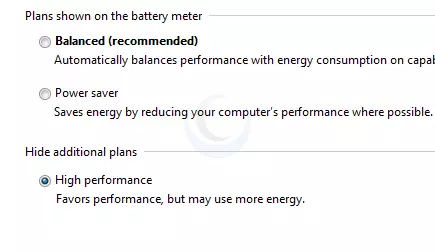
Change the Power Plan To Maximum Performance
- Double click the ” Power Options ” in the Control panel.
- Click the down arrow showing ” Show Additional Plans ” to see the ” High Performance ” power plan.

- Now just activate the ” High Performance ” plan and that’s it.
- You may go for the advanced settings for further tweaking if you want.
The Power settings in Windows 7 is not automatically set for maximum performance. By default the power plan in Windows 7 is set for a balanced performance with energy consumption on hardware. So you may not get the optimal performance from windows 7 in this case. So we need to change the power plan to High Performance Mode.
Disable the Thumbnail Preview Feature to speed up File browsing in Windows 7
For disabling thumbnails in Windows 7,- Double Click on ” Computer ” >click on the “Organize” drop-down menu and select the “Folder and Search options”
- Under ‘Files and Folders’ section, go to the “View” tab and tick the check box showing “Always show icons, never thumbnails” checkbox.
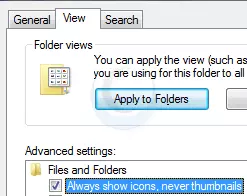
The thumbnail preview feature in Windows 7 will show the small thumbnails of the contents of a folder instead of showing it’s icon. But this feature really do take up some system resources by generating thumbnails when you view a folder and keeps building up cache. So by disabling the Thumbnail Preview feature the file browsing can be speed up.
Useful Software To Speed Up Windows 7
In order to maintain Windows 7 Performance and keep it up in Top Shape there are some very essential software’s that could be of great help to Speed Windows 7. I will list some of them here. You may download and install these utilities. Make sure that you run these utilities at least once in a week. If you are regular at this, Windows 7 will be in top shape every time.
You may check this post which i have prepared earlier about the Top 5 Tools To Speed Up Your PC.
http://www.computingunleashed.com/2009/05/top-5-tools-to-speed-up-your-pc-to.html. You’d get more idea reading the usage of the software i mentioned above.
Registry Tweaks to Speed Up Windows 7
Here are some registry teaks that can be used to speed up windows 7 even more. I have complied only the safest tweaks that can be applied to your PC. Apart from speeding up windows 7 they will also add some additional functionality in windows like adding Copy to / Move to in right click context menu to speed up your daily tasks.
http://www.computingunleashed.com/2009/01/registrytweaks-for-speeding-up-windows.html
- If you have the full licensed version of Tune Up Utilities software, use it to keep Windows 7 in top shape.
Turn OFF Windows 7 Password Protection To save a few More Seconds!!!
If you’ve set a password for accessing your user account in windows 7, then you’d need to enter it each and every time you login to windows. Logging into windows automatically without entering any password will save you a few seconds. If you are the only person who use your computer then i’d recommend to turn this off. If not, you may skip this step.
How to Automatically Logon to Windows 7 without entering any username or password
Disable Unwanted Start Up Items for Speeding Up Windows 7 Start Up
- Type ” msconfig ” in the “RUN” option from start menu press [Enter] to open up the System Configuration Utility.
- Now navigate to the “StartUp” tab.
- Un-tick the Entries which are not needed
When you have installed a lot of software on your PC, there might be a lot of services that would start along with windows. For example, software such as AcdSee will run services such as device detector during the system start up. These are of no use for regular windows users (unless you transfer photos to your pc via a camera). So preventing such services from starting up along the windows 7 startup session, can result in quicker startups.
Disable Unwanted System Sounds in Windows 7
- Type mmsys.cpl in RUN From the Windows 7 Startmenu search box and press [Enter].
- Navigate to the “Sounds” tab.
- Now from under “Sound Scheme:” select “No Sounds” > Click “Apply” > “OK”.

- You may keep some of your favorite sounds turned on if you want, but sounds played during the Windows 7 start up, shutdown, Logon, logoff, start navigation etc should be set to none if you want some real speed boost.
In order to play the sounds you hear in windows 7, system resources are being utilized. So if you could disable these sound effects, that would successively free some system resources too.
Thats it! following all these steps will certainly boost the speed and performance of your windows 7 operating system.
For More Awesome Guides, Join our readers to keep yourself updated and you could thank us, by sharing the article.
176 Comments
awesome tips that make a BIG difference. Thanks so much! holding out on my Windows 7 until I really need to upgrade to the new Windows version
Yo wut amal. Just want u 2 that u r indeed the ultimate. It’z almost like having a new computer, I mean I haven’t seen it perform like this since it waz new way back in (2006)!…(LOL). So needless 2 say u now have a new convert 2 ur rankz…(smile). I will b following 2 stay abreast of wutz going on & wutz new in the world of tech. So until the nex time, peace & all manner of blessingz b unto 2 u & urz & the happiest & safest of holiday. Oh! And thx 4 the early xmas present (SANTA!)…(LOL).
A yo amal! I had ta holla @ chu son! I mean I don’t even know wut 2 say or how 2 act! I mean like damn! I mean u would have to have been here 2 see just wut my computer waz running like. 1st off, it’z old, I mean like I bought it brand new back in 2006 ok!…(LOL). Not ta mention it came wit only 1gig of ram & I’ve been running (WINDOWS-7 ULTIMATE SP1), so u kin just imagine wut tryin 2 bring up like (XBMC) or any website waz like, I mean I actually fell asleep a few time just waitin 4 suff ta load up. I gotta tell u mal, just b4 I hit dat enter button I ain’t gonna even front ur boy waz a lil noid yamean…(LOL)…cuz when u talkin da registry it’z so very touchy. But I figured I installed a restore point & backed up my registry so if anything went south I’d b ready. But yo kid, I mean right after I did da reboot, I mean like instantaneously I saw the difference. I mean, within 2-3 sec the pagez were loaded, I couldn’t believe my own eyez yo!. I know Im takin a min but I felt I had 2 let chu know just how appreciative I am 4 somehow coming across ur post & having the belief & conviction 2 take a chance on something I had not 1 clue would actually work & could have possibly left me without a working computer 2 use. But Im happy 2 report that my faith in ur stupid, sick skillz waz very well placed. Needless 2 say u now have another new convert & I will b following & staying in touch. So once again frm da very bottom just wanna say thx a million 4 my early xmas present (SANTA!)…(LMFAO). Until nex we hook family, peace & all manner of blessingz b unto u & urz & the happiest & safest of holidayz peace…(wink,smile). SHAMIR KWAHLIF-AKA-(BLACKPHOENIXRIZIN) 1
Great tips for speeding up Windows 7 :)
Thanks for this tip men. it helps a lot.. I have a desktop which is a dual core running on a 64bit Windows7 ultimate.. my problem however is with my old laptop. it’s celeron M 1.5Ghz and a 512mb memory.. i installed windows 7 home basic. followed all this steps, and it runs pretty good. God bless
great tips, my comp has already improved!! Thanks a lot
It worked for me like a magic !!! Before reading this post – my 6 GB RAM was of no use, my system used to be slow :)
Thanks for sharing this post buddy !!!
Very nice article. Can I get your opinion on this idea. If I do need the search option frequently, would it be wise for me…(I have 64GB of RAM)…to create a 1 or 2 GB RAMdisk and install the LOCATE.EXE application to this drive. If I do this, should I have the this index automatically backed up every time i shut down to my extra ssd that is not in constant use? or will it even effect my system to reindex every startup? (using 3930k cpu)
I’d advise you to install the utility called “Everything”. Its like an instant search and you could assign a keyboard shortcut to call it up when required. I’ve assigned F11 for the utility and it just comes up so fast and the searches are lightning fast. You’d love it more than the windows default utility.
Very useful info for me !!!!!!
Thanks a MILLION, this helped to increase speed of may pc about 10 times.
Respect Sergiu.
After I did most of that you suggested on this page, I got my boot up time down from 20 Min to a blazing 12 Min…
Now I have to see what else I should do to normalize the boot up time, for I haven’t got much time at my age over 70…
Greetz, from Joh
in St’go de Chile
My i7-3770k rig (with 2 SSDs in RAID0) salutes you
hey,thanks for the tips…I have Dell, OS-win 7 ultimate,64-bit,core i5, after altering some of the features, it speeds up..
Holy frag!
Top tips sped up my computer like a motherf-…er, it’s performing extremely well now. Fantastic!
There was so much stuff trying to start up all at once, and a lot of features I had no idea were there. Running smoothly now.
Thank you so much for the tips. Keeping this page and the site bookmarked for further tune ups. Awesomeness!
Awesome ideas for speeding up Windows 7 Ultimate guide. I cannot stay without giving thanks.
Thank you so much for all these tips! My friend and I both run Windows 7, but her CPU almost never runs above 25-30%, which I would always look on in amazement. I always wanted to try to achieve the same goal, but there’s so many components that run, I was never sure what I should or should not be touching in case I turned off something important. So thank you so much for the guide; I will definitely have this bookmarked.
hey,thanks for the tips…I have Dell, OS-win 7 ultimate,64-bit,core i5, after altering some of the features, it speeds up..
can somebody me answer: can these instructions (same as windows 7) use to speed up windows 8 on the same way ?
@Tonyyyy
Most of the settings for visual effects and registry tweaks to speed up windows 7 are also applicable for windows 8 too. But we dont recommend manipulating any services as these are little different from windows 7 and we’ll release a guide to speed up windows 8 pretty soon.
Thx a lot for , it’s really helpful, I saw the effects already. I am gonna keep it for further usage.
Effective tips though. But I am waiting for Windows 8 and will go for it as soon as it gets released. Till then these tips will surely help.
Thanx you my friend, i implemented these tips to my laptop last night, i have a feel that it is runs fast but i havent run big applications yet i believe it goes well, thank a lot.
I don’t know if my comments makes a difference to you.since the page is more than half filled with comments.
Still i really appreciate this share of knowledge and it really helped.I already kind of feel like a pro because i could understand all the instructions.Thanks for simplifying it.
Keep it up! Cheers!!!
this is a very informative post and i definitely like that the author is doing, only thing is that with windows 8 preview out and windows 8 soon to come he will definitely have to write a detailed post on how best you can optimise windows 8.Regardless it is a great share, now let me head over back to my blog.
I was looking for the performance settings but found myself reading the entire article. It was most useful, thank you!
TCP Optimizer: 2 huge thumbs up. After startup, I used to wait…and wait…and wait. Now, I’m instantly connected.
Like the tips about eye candy. I still use Aero but disabled some features and I see a difference in just that.
I did some of the others too. Thanks. Keep the page up!
I have been a tech since 1989 and there doesn't go one day that I learn something new. I've seen many coments in here and some of them are rather un-intelligent. These tips work perfectly for fast CPU systems with lots of memory as well as for older computers with slower CPUs and low memory. Not everyone can afford a new computer every time there is a new OS. Most students have older computers and have access to Windows software through their schools. I feel that if you have a computer you should be able to do what ever you like without anyone pushing their ideas. As for all these tips: They all work, great job Amal. Keep it up most of us really enjoy seeing once in a while honest technicians who can help others with their tips and time used to discover it. I really appreciate your help on this. Keep up the great work.
I disagree with some "smart" guys saying that you shouldn't install Windows7 on old machines… The difference is not the look of the OS but it's functionality… Automatic updates update both the system and the drivers, so no more trouble with updating manually like in XP, better security-I don't know if you're familiar with this but Windows7 doesn't even need an anti-virus software-everything you put is a plus to the overall security… So, yeah, with these tweeks you will loose the appeal but you'll stay safe and run on a better OS… I have a laptop Acer Extensa 4100,slow as hell,even on XP SP3… I have Intel Centrino 1.73,512 DDR2,40GB HDD and 128MB VGA card… These tweeks helped run my OS much faster,almost as Windows98 but I am much safer,up to date and I have a good sleep at night…
you rock man !!!!!!!
7 faster than ever
I can't thank you enough for your great tutorial ,the "TCP Optimizer" really did speed up my connection speed.I have 1mb dsl connection speed and I used to have 64 kb/
s when i download a file .Now with "TCP Optimizer" I get 102 kb/s maximum :)
Thanks..i ony ended up using 2 of these tips but it definately made a difference! im using a toshiba satellite with windows 7 64bit turion core 2 duo and 4gm ram..with 6gb readyboost..and i really dont wait for ANYTHING! this thing moves no matter what..i still have most appearance eye candy ON and use search feature often but i canceled some stuff from startup and changed the power settings and it just goes…Thanks!
For all of you giving negative remarks and contraindicating his tips…give it a rest..hes trying to help…if someone has a super fast computer they will probably never open this page…im a perfectionist so i did but i really didnt need to and i STILL found some of the tips useful!
Thanks so much, this has realy helped speed up my comp :)
Dear Amal,
Thanks a lot & I can't describe how I feel seeing increased speed of Win7 & Internet. Hats off!
And I appreciate your hard work & May God Bless You to bring out more fantastic such works in the future for the netisons!
Many people just write a blog & never care to come back to feed the QA. But you have taken such patience & brains to feed the bigger community as to a child and to pacify 'The Big Brothers' with same ease.
I shall be happy if you can send me your email id.
Again A Big Claps Thanks!!
@joji
Thanks for the good words friend. As it is not safe to reveal email address i cant give it to you through the comment. But You could always contact me using the Contact Link at the Top of the site. Ill reply you with my email id.
Good Luck
Gotta tried this,.. there are times that my windows seven just sit there appearing to be working and leaving me in an awe waiting him to load up.
thanks,
Guys !! you rule.
your tips were INCREDIBLE
thanks
Hay thanks for the post dude :D
there are not many posts out there yet talking about what services are good to turn off in windows 7 ultimate.
So agan thanks for the tips.
Thanks for the tips, some of them really useful. There is one more thing I would like to state about speeding-up your machine: If you can spend a few more bucks go for the fastest hard-drive you can.
It does make a difference since HD access is one of the most time-consuming tasks you can have.
I have a new computer with Windows 7, about 2 weeks old at this point. I have already managed to screw it up, I think. I was using Advanced Registry Optimizer in my old XP machine and it did speed it up considerably. So I installed and used it twice in this new one.
I just read your Speed up Win 7 and have been taking your recos. I downloaded Wise Registry Cleaner and installed it. When I attempted to create a restore point, I got an error message indicating that my system has lost some necessary DLLs are missing thus making it impossible to create a system restore point.
What if anything can I do about this? Windows 7 can still make a restore point.
Best regards, Ben
I would recommend you to run a system repair using windows 7 installation disc. That would fix the problem of dll error.
Dude, MANY thanks for the tips!! I'm here in East Africa and I just moved the great multi-talented artist, Theo Stone, at http://theocraft.com over to Windows 7 from XP — all on her Toshiba Satellite M30X-S214 with a (gasp!) 1.3 Ghz Celeron M processor & 512MB RAM. I ALWAYS tweak Windows after I do an install but this is a very nice blog post you got here.
BTW, 7 runs quite nicely on this laptop! I'll apply the teaks after I do a Windows Update, and I'm sure it'll fly. Big ups to M$ for really delivering a superb OS — this time around. :-)
Cheers!
oops i forgot to say that disabling superfetch will disable the readyboost. ps you have to type it with no spaces
Type msconfig in start menu search, then hit enter. Then (if you want to) tick the box that says load startup items. Then click on services tab, single click on one service, then type super fetch. Click on the box. this will save you 80,000 kilobytes of space
Thanks a million! It was a great piece of work. I appreciate all of your hard work. :-)
Turn off System Restore too! One of the biggest resource hogs for any windows machines, and practically worthless in application.
Awesome tweak list!
WOW, great information. Thanks a bunch for sharing this. I'll make sure to spread the knowledge. The tweaks really did help this dinosaur of a machine.
I got it! I've just looked up on previous post :P My bad. Thanks Amal :D
Hi big brother of Bimal Roy :D (I wasn't able to find your name in about). Thank you very much for sharing these information. I haven't tested everything yet (I'm currently at number 12 as I write), even so, using the tips 1 – 11 already improved the speed of my Acer Aspire One netbook running on Windows 7 Professional.
I'm looking forward to apply everything you posted here so that my computers will run at their best all the time. Again, many thanks to you and God bless you big brother of Bimal Roy :D and all the best for Computing Unleashed!!! :D
P.S. I apologize, but I havn't found your first name yet, may I know the person I'm thanking? :D
Thank you Pong.
these are one of the tips for boosting up win7. if you'd like to make it super fast, you need to apply tweaks on your registry & system, defragmenting both your registry and disks, cleaning registry error(s).
enjoy boosting up your win7!!
Very nice tweaks. Got me a 4 gig external RAM attachment now. Hhahaha
wow!!!…tnx a lot, cool one dude :)
Item 16: "Disable Unwanted Start Up Items" was most helpful. I've turned off a lot of stuff I no longer need. Now loading and running is much sharper.
A very handy tip – many thanks.
John.
yea!!… it helps.
really . nice work!
It should be noted that Readyboost will shorten a USB drives life by quite a bit, since flash drives have a fairly limited number of maximum writes in their lifetime, so using it as a cache means you are constantly writing data to it and quickly eating away at its max writes.
this was great… keep it up!
Wooo Thanks for the info , that helped a lot.
but yes we should disable 40% of the windows 7 to work properly. By the way thanks.
having problems with step 2… cant find “Open classic appearance properties for more color options”
any help please?
Just search “Windows color and metrics” in the start menu and you will get the classic appearance properties.
My Machine locked up after I set the advanced features from letting windows control it.
anyone know how to stop my pc from locking up using these tips?
why did you delete my other post?
Matty
@Matt
You post wasn’t deleted. It went to the spam list and got missed. You wont get any troubles using these tips as it have tested it my self. Download Ultimate windows tweaker utility and do the tweaks. And if you are not a beginner with windows you can safely disable the uac in windows 7. I hope that will solve your problem..
Hi, I have to say that after using all your tweaks my system locks up and it NEVER did that before.
Have any ideas what could be causing the problem? I also am getting internet explorer messages frequently that say it has stopped functioning and windows is looking for a solution and I never got those messages at all before. Sorry to say I am not impressed with all the tweaks and now my system is running worse! HELP!
Matty
Hi, I am still locking up and getting windows error msg that it has stopped working I never had these problems before help me please!
Matty
As i said first in the post, you can try restoring the system to a previous good state. I am sure the tweaks wont cause such problems and it might be because of some softwares or registry troubles. Also download cc cleaner and clean the registry. That will fix the problem.
if you need so free up some space, disable hibernate for windows vista/7: run the command prompt and type “powercfg -h off” (you need to be logged as an administrator to do this). good luck
A great way to make windows more responsive is to increase the amount of ram the operating system can use. By default, windows uses 256mb. You can increase this to 512mb doubling the operating systems speed. Just make sure you have 2 to 4GB’s of ram, otherwise it can slow your system down. To do this, right click command prompt an select “run as administrator”. Type the following command.
fsutil behavior set memoryusage 2
Now hit enter. Exit out of command prompt and reboot your computer. Windows should now be twice as responsive. If for any reason you system becomes slower, you can reverse the proccess by going back to command prompt and entering the following line.
fsutil behavior set memoryusage 1
@Courtney Drebis
Hats off to you for mentioning the great tip. I’ll be posting it soon.
Good Luck and Hope To See You Back.
Turn off User Authentication mode to ensure your machine can run faster without prompting 3 or 4 times upon deleting files or file modification.
Lost power at my site. lol
What i meant was that Many of these “features” were very similar to what Windows 2000 users said to disable in Windows XP to speed it up.
If you’re running Windows 7 on a “New” computer you do not need to tweak those settings those are what gives it the edge over XP. As an example. Many Good computers with DX10 GPU actually perform 4x faster with Aero on since now much of the interface is through the GPU. so turning it of drops you back to the 2D style of XP which is not better.
Mac Os x users can attest to running the whole interface through GPU is the way to go for performance. M$ knew this hence the feature.
The indexing in Windows 7 can be changed i the schedule task to run off hours (early AM) so has no impact.
My 2 cents. good to point these tips out but you need to contextualize it by saying this is for older slower XP computers now upgraded to Windows 7. New Windwos 7 64bit machines with 8GB and high End DX 11 cards won’t need this.
I think that these Tips are old, Yes they are informative but they disable all the “features” that make windows 7 great. These are the same Tweaks you do to Speed up XP. almost tip for Tip.
UAC is VERY good in windows 7 and for “stupid people”.
Well put together and very helpfull.
Thanks very much !
Great reading made a huge change in the speed that my computer ran. Thanks for the tips!!!!
comments about users who have fast rigs not needing this is IMO off base. Even if you, like I, have the fastest system money could buy on the day it was bought they do not build a consumer machine fast enough to run many applications at the speed many of us would like.
Good article. Thanks
pls send me tips to highly speed up my startup
If you do not use multiple monitors, dissable the
TMM. There are several online tutorials on how to do this. The long dark screen pause before the welcome screen will be eliminated. This shaved a good 20 seconds off my boot time.
There’s this really cool program that helps make window navigation and handling much more intuitive, it’s called 7plus and here’s the link to download it: http://code.google.com/p/7plus/(http://code.google.com/p/7plus/). Look at the sidebar on the right and click on 7plus V.1.11.zip, NOT the first one with “sources” added.
Hey Amal, I’m guessing that you’re the author of this article. There’s no href attached to the “List of services in Windows 7 that can be safely set to manual / disabled.” link. I really wanted to see what services I can disable safely. Thanks a ton.
@ Ahmed
Thanks a lot friend. The same issue had happened before too. Fixed it now.
Good Luck Friend
good job, only thing that i noticed in a negative way was my SLI nvidia card temps went up…don’t know if that is because of the aero or such, but i have a high-end rig and am not worried about it, only 3 degrees, but when your gaming i notice this difference when idle….other than that, your right and your conclusions are spot on…GOOD JOB.
@David,
Yes david, if u disable aero, actually reduces the load on the graphics card so the temperature of the graphics card should decrease than currently what you have. Do check the cabinet for proper airflow and wire clutters. Also do a small cleaning up inside the cabinet. That should bring down the temperature if dust was the problem.
Good Luck Friend.
“You should have a disclaimer for those with fast rigs that you don’t really need to do this.”
Yes – you should have a disclaimer for idiots who really are too stupid to own a computer.
On behalf of the marginally more intelligent readers – thanks for your work here. :)
@Grr Power
Yeah, i think there wont arise a need to speed up windows 7 for people who own fast rigs. This guide will help those who have difficulty or struggling in running windows 7.
Thanks friend and Good Luck :)
I was using Windows Vista,but when installed some programs its performance became low.I had heard that Windows 7 can work well even with 1GB RAM.So,I bought a new DVD of Windows 7.But it worked rather badly.I was thinking of now using Windows XP.But an idea struck my mind,that I should try something about that on internet.So,I searched on Google.And followed the steps shoiwn on “http://www.computingunleashed.com/2009/06/speed-up-windows-7-ultimate-guide-to.html”.Now I’m working with Windows 7 & enjoying alot.
Thank you for this making this website for us all. I have used the information from your page on many windows 7 laptops and it really makes a performance difference, even more so on netbooks where resources are limited. James
This is great.. Except that it takes away things that I like about Win7. You should have a disclaimer for those with fast rigs that you don’t really need to do this..
First of all i wanna say thx for hard work, really apreciate it..
Now few words to these dumb asses..STUPID IDIOTS SHOW SOME MORE RESPECT TO THIS GUY OR GO AND KILL URSELF U STUPIDS…
THX MAN
Great guide thanks – my Windows 7 is now faster than a greased weasel.
The “List of services in Windows 7 that can be safely set to manual / disabled” link is broken.
Thanks fot notifying it friend. Fixed it now.
This is fantastic. thanks a lot.
wow.. it works.. thanks very much.
before this my windows 7 was really slow.
1) Right click at Computer > Properties.
2) Lower left corner, click at Performance Information & Tools.
3) Upper left corner, click at Adjust Visual Effects.
4) U know what to do..
This is great. Thanks!!
Wow, it is really a great info. I know that Windows 7 is pretty speed in performance compared other MS OS. But, after following the above steps, my Windows 7 is “really” “really” fast.
Appreciate your hardwork.
Cheers
Great tips. Most of them are applicable on Windows xp as well…Most essential software list could have been better.
GREAT JOB GUYS,THANKS!!!
You did a really fine job on this article. I am up late reformatting and reinstalling Windows 7 and I couldn’t remember my routine for optimizing Windows. I have been doing these types of tweaks for years in XP/2000 etc. Great guide.
great. jeez thanks
Hmm Great and brealent job nice work thanks a lot
Regard
Ch.M.Faisal Javed
I have used the reg file speed up for a few weeks it works fine. the only problem i seem to have is that the warnings keep coming up to change to user account profile and reboot. I guess the warning will go away if I shut off the pc issues warning. I just dont like the idea of me not knowing what program is changing my applications… Ideas??
This is because the delay for ending applications are being reduced to a very small value and the programs are forced to shutdown. Find the corresponding registry enter in the registration file and increase the delay to 5 seconds or so. That might fix it.
“Now click on the ” Make it easier to focus on tasks ” seen at the bottom in there” Ummmm… WHERE????
You didn’t see it correctly. Don’t you see the “Explore all settings”. Scroll down the window. It is there as the last option (at the bottom of the windows). Hope you will see this time. If you still cant see it. See this screen shot. http://img2.pict.com/e0/02/eb/3188731/0/makeiteasier.gif
epic fail “Open up ” Programs and Features ” from Control Panel.” Where the hell is that?
Hey look properly. What you see now is not the the classic view of control panel that s why you are not seeing it. Open control panel and Select Small icons from view by option at the right of window. Then you will see the option for ” Programs and Features ”.
comon guys, pay some respect to the man, he worked hard to make this page
where do u find “Open classic appearance properties for more color options” ????
Seems like you are not familiar with the new windows. Go here Control Panel\All Control Panel Items\Personalization\Window Color and Appearance and select ” Advanced Appearance Settings “. You will get what you want :)
Thanks very much for the helpful ideas which have sped things up for me!
The only problem is that now when I type on my keyboard (Acer PC), whether in Word or in my browser, letters can be skipped when I type them as the computer seems to pause for a millisecond. Does anyone have any advice?
Many thanks!
@Jaime
Type start keyboard in the start. Now open up the keyboard properties from the list. In the keyboard properties windows, move both the sliders to the extreme right ie. Repeat Delay (Short) and repeat Rate (Fast). I think that will help you in fixing the problem.
Thanks for the idea, I’ve tried it but no luck – it still keeps on pausing and missing letters every so often. I wonder if it’s a problem with my Acer wireless keyboard?
Thanks for your help,
Jamie
@jamie
If it’s still not working try using that keyboard in your friends pc and check whether this problem persists. If its there then its time for the batteries to be checked or replaced or might be the keyboard if its under warranty.
Amal, this is a good list,I have combined a list with some more steps. 22 steps to make windows 7 faster. Read here
http://www.sysprobs.com/22-easy-free-steps-windows-7-faster-faster
Dinesh, Yeah nice list just read them. Thanks For including my post :)
windows=bloody hell complicated
Disabling Aero won’t necessarily give you a speedup (in fact it could hurt performance) due to the fact that it offloads work from the CPU to the GPU. This means your CPU can spend its time doing other things instead of rendering the desktop and overlaying windows.
Windows Search in 7 is also fairly unobtrusive (unlike in earlier versions of Windows). It will do a file system crawl after you first run Windows 7 after installing, but once the system is indexed it mostly only has to deal with changes to the filesystem, which it can track individually. The only case where it makes sense to disable Search is if you never use it and you have a very low amount of RAM (in which case you should be running XP anyway).
I cant agree completely because run windows 7 with the aero user interface and check the amount of ram used. Also using aero does hurt the performance when you are playing games and using other graphic intensive applications. Dont you see some apps automatically switch off the aero user interface when they are started in windows 7? So turning off aero does improve the performance, i have my self tested it and also many readers reported it.
If you are not a frequent searcher in windows 7, you can safely turn off the indexing feature. What’s the use if you are barely using the windows 7 search feature? There is no use in indexing the files as it takes time and resources. But for frequent searchers it is not recommended to turn off the widows 7 search.
Good Luck Aaron
Really a great TIP TO SHARE.. LOVE U
Thanks Rajesh for the support.
if i make windows 7 ultimate final faster wht will be problems in future.any problems when i install any software or any update
Dont worry it wont cause any problem.
actually each time i restart my system its shows press f1 to resume and a drive error.. when i press f1 it show the black screen as which os u want to use windows 7 or windows xp but i don have xp in my system.. how to skip tat window,,pls help tnx for advance..
Try this link and see whether it helps you. http://www.techsupportforum.com/hardware-support/motherboards-bios-cpu/304606-drive-error-press-f1-resume.html
this link is not working….amal
Hey its working fine. Check this one too. http://www.d-a-l.com/help/windows-me-help/931-windows-me-fails-start.html
I have a choice of running 64 bit and 32 bit windows 7. I have the i5 intel duo core 2.27 processor and 4 GB memory laptop. I am not planning on sucking up lots a memory with a ton of applications running at once so the memory management with the 64 bit is not all that necessary. I am looking for performance so which would be better for me?
Yeah if you are aiming at performance and if your processor supports the 64 bit technology then go ahead with the 64-bit version.
I have to disagree with that. Win7 32-bit is actually faster with >90% of the programs out there. This is because almost all programs (including Microsoft's own Office programs) are optimized for a 32-bit environment. That means the programs have to go through an additional emulation layer to work in a 64-bit environment, which tends to slightly degrade performance. Eventually, though, software producers will catch up and create 64-bit optimized software, but I don't expect that in the near term.
I am a tech, I have worked With HP computer USA and with one more company. I can help you to speed up your computer-
just folow few steps daily anf your computer will never go down
-go to filehippo.com- download ccleaner
-run It every end of the day
(in this tool at left hand side we have registry cleaner, also click on that link to clean registry apart from cleaner, when you run registry cleaner it will ask to to save the registry file..always save the registry back up file)
-download one more tool atfcleaner.notlong.com, once you open this link it will ask you to save, run , cancel click on save, save the file on desktop
-run this tool once in a day also..
For any more query you can mail me at ashish0015@gmail.com
Thanks for the great tips.
Help!
I followed some of the tips, and probably the very first one make me disappear ANY search functionality. When i press windows+f i get an error about no program found, and i can’t find the windows search anymore….
help me please! :=)
ehm… i found it.
just start up the search service from administrative options > Services.
Thats good friend :) i also write some guide to make windows 7 running faster. Please give me advice if i am wrong, and lets sharing together. :)
This is my article : http://howcomrep.com/2010/02/25/14-ways-build-high-performance-windows-7-speed-part-1/
after i did al the steps my hp sk-2960 multimedia keyboard will not show the on sreen volume display nor will the hot keys work (eg. email button , iternet button, or the skip track buttons) I’ve try to find the option i might have turned off but no luck. pls help
Hey friend, it might happen at times due o some registry errors or so. just reinstall the software using the cd that came along with the hp keyboard and every thing will work fine.
I want to disable all AERO features what are used with windows apps under windows 7. how can I do this<
Type disable aero in windows 7 start and press enter. Then on the opened window untick enable transparency.
The tip about ticking the box in the boot tab in msconfig that supposedly makes it boot with 2 cores or more is a valid tweak for my i7 920 processor because the time from login to a full started desktop is a lot quicker because my Trend Micro Internet security 2010 relatime protection normaly takes a lot of resources.
I timed it without the tweak for 45 seconds delay and now its 15 seconds delay
Yep it works for pc’s with processors upto 2 only.
I was considering getting another OS and stumbled across this. Happy i did, thx for the time and effort you invested.
Yeah, i know one which is useless…its Windows Defender….can be easely disabled from Services….give it a try…
The tip about ticking the box in the boot tab in msconfig that supposedly makes it boot with 2 processors is not a valid tweak. Do a google for it. There are plenty of reliable sources talking about what this feature is for. If you leave the box UNTICKED it will try to boot with as many processors as it has anyway. Ticking the box is only for diagnostic purposes mainly for developers who need to set it to 1 processor for some reason. This tweak should be removed from here. It is the the one tweak you see on all these sites which is the least understood of any of the tweaks. Somehow people think it help though. If you time the bootup with a stopwatch, you will clearly see that bootup time does not change by ticking the box and setting it to 2 processors. Try it for yourself.
Sure Sam, you are right. I have done it accordingly, thanks so much for the suggestion.
WOW thank you for the time you put up to do this tutorial. Really helpful, thank you once again.
Nice Tips, I will really use them when I get my notebook, hopefully.
Thanks!.
Extremly helpful windows7 Is fast as hell for me,Thanks~Joe.
Thanks a ton, just went through a bunch of these, love optimizing my OS. I kind of miss XP but I just wanted to go with something new for a change.
.-= Murlu´s last blog ..Learn To DJ Online: 10 DJ Courses To Teach About DJ Techniques and Club Life =-.
It is good tip for increasing windows 7 speed.
In the boot advanced options, setting the “number of processors” only restricts the number of processors the OS will see. Set your quad core to 3 and you will only see 3 cores. It does not affect boot speed.
Great stuff dude , this has got my windows 7 pumping, no more aero and useless crap running in the background , why ohhh why microstuff didnt do all this in the begging instead of all this useless eye candy , they would have ended up with one great OS.
Cheers from Downunder
Great advice – most of them really handy – not just for old PC – is for everyone who like to learn something(mean clever and kean ppl}
opps romg link for extremecopy..here the right one >> http://www.easersoft.com/Download/ExtremeCopy-std-1.5.1.zip
thank u very much!!!this is really effective.
This is the greatest tech publication regarding windows 7 ever. I use a Sony Viao laptop with windows 7 as a recording studio laptop. My DAW is the Cubase 5. I was experincing crackels and pops during recording ( because of all the resorse hogging crap running in the back ground mentioned above). I could not under stand why when this laptop was a serious upgrade from the laptop running XP with no problem ( more RAMS, hard drive etc). This is ground braking. I cannot thank you enough. No tech support from CUBASE or SONY could give me the answers for my problems. This solved it all. I thank you very very much. You are cool my friend.
Suman
Thanks for tips. It’s useful.
Well then why do we need Windows 7 if everything will look like Windows 95?!?! I think that you should install 7 if you’r computer can handle it, and you REALLY want it… BTW, I’m 100% sure that tips will boost computer up to 30-40%, but the visual will suckkk
There are many reasons to use windows 7 rather than considering the visual eye candies.
I agree with the smarter posters here. Many if not all these tweaks are for slow machines. They are the few things that seperate the best features of windows 7 from XP. Now you disable them and have what ?? I rna core 2 duo with 4 GB on a 32bit Windows 7 ultimate with a 512MB DX 10 video and it's sooo much faster than XP by far. I also run Win XP 2 session in virtual with 1GB allocated to each and this thing is a beast even while all these are on. Ready boost on 2 usb's.
Windows 7 sings. So yeah if your Pc can barely run 7 and you run out and install it, one would think it will be slow. Good tips for the less systems but any new "Core i7" setup really should not follow these.
In windows 7 the indexer is one of these best interface features , giving the search from any where aka osx spotlight. After that you never use the program files menu.
really thanks, my pc is more faster :)
thanks for tips, my windows 7 was so slow now it is normal :) thanks
Thanks mate..i really appreciated it.
Say good bye to slow windows7.
OMG the list is huge .. seems that u have mastered windows 7.. just bookmarked this page wil open up the page when i am back to home.
.-= Rajesh Kanuri @ TechCats´s last blog ..How To Add New Year Countdown Widgets In Social Networks =-.
thanks… hay i have only 5 GB free in hard disk that contain windows 7 is it okay? if any one know what should i do send me an e mail… hewamullage123@gmail.com PLS PLS PLS!!!! HELP ME!!!
Its ok if you dont think of installing a lot of softwares in the same partition. You can also turn off unnecessary features in windows 7 to get more space.
defragmetation
Excellent work, such great advice, many thanks for all of your hard work and effort on this, much appreciated.
All the best
Ich hab gelost eint forts
I would like to thank the ppl who spent the time an effot in maken this site!
I have don a few of the small tips and allready i have took off 20% of my RAM useage and it is so so much quicker
Thanks ppl
GREAT TIPS MAN
THEY REALLY ORK
!!!!!
YOU ROCK, nice tips cheers bro!!!!
Thanks for this tip men. it helps a lot.. I have a desktop which is a dual core running on a 64bit Windows7 ultimate.. my problem however is with my old laptop. it's celeron M 1.5Ghz and a 512mb memory.. i installed windows 7 home basic. followed all this steps, and it runs pretty good. God bless
I really don't understand all these people complaining about these tips being pointless or intented for older machines. My system is up to date and fast. And I'd like to stay it that way. I want my OS to be low profile, simple and fast instead of eating up my resources. I don't want Windows but I do want Photoshop and just happen to need Windows as an OS. Preferably the most up to date 64-bit OS. That's why I have Windows 7, and that's why I turn all the resource hogging eye candy off.
very good for extreme gammers, xp lovers and crappy pc's
Stopping the indexing reduced my RAM usage 10%. I'm running a new Alienware M17x and I really didn't have any problems with speed but that feature is something I don't use anyway. Thanks for the tips.